

当前位置:主页 > 雨林木风Win10系统教程 > >win10系统开机提示Autochk programe not find怎么办?
win10系统开机提示Autochk programe not find怎么办?
时间:2018-08-17 作者:雨林木风Win10系统 来源: www.ylmfwin100.com
win10系统开机提示Autochk programe not find怎么办?针对此故障问题,我们一起阅读下文教程内容吧。
方法一:
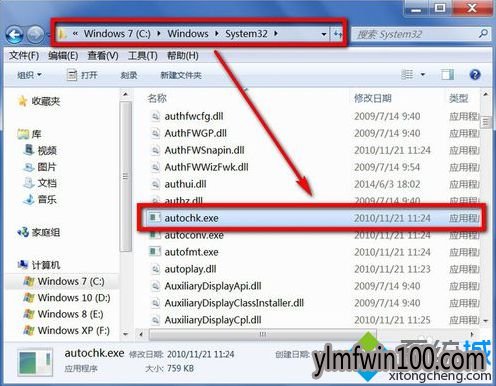
1、很可能是磁盘自检的文件autochk.exe损坏或丢失,如果该文件丢失,就会在执行磁盘自检时,出现上述错误提示;
2、可以通过系统安装光盘,或者其他相同系统的电脑上,或则从网络上,获得autochk.exe文件,放到C:\Windows\System32文件夹下;
方法二:
1、完成方法一的操作问题仍在,可能是注册表的配置项丢失,这种情况大多因为安装了冲突软件,或者是病毒损坏造成的;
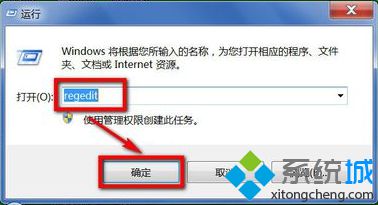
2、先进行全盘杀毒,然后打开运行,输入regedit,确定;
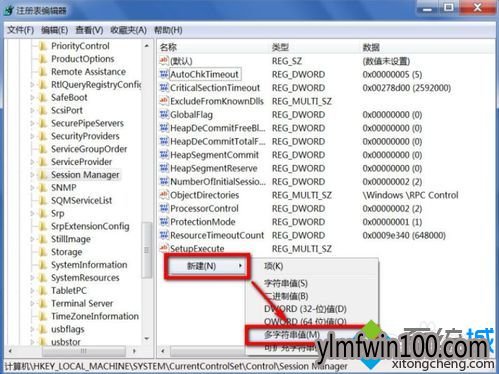
3、依次点击展开:HKEY_LOCAL_MACHINE\SYSTEM\CurrentControlSet\Control\Session Manager;

4、在Session Manager右侧,找到BootExecute,如果没有就新建一个多字符串值;并命名BootExecute;
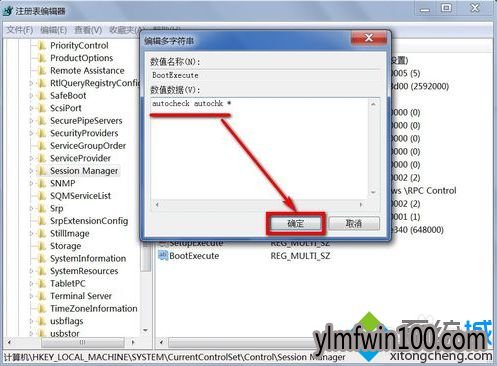
5、双击BootExecute,在数值数据中输入autocheck autochk *,并点击确定。
方法三:
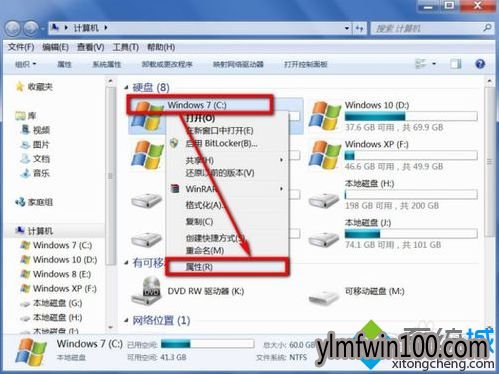
1、也有可能是由于磁盘出现逻辑错误,右击C盘打开属性;
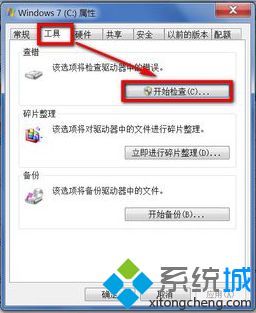
2、选择“工具”选项卡,点击查错下的“开始检查”按钮;
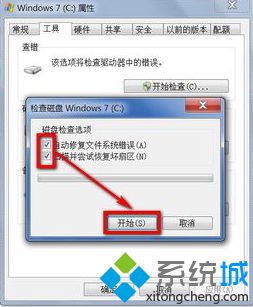
3、在弹出的窗口中要勾选“自动修复文件系统错误”和“扫描并尝试恢复坏扇区”,然后点击“开始”按钮。
关于win10系统开机提示Autochk programe not find怎么解决的全部内容就分享到这里了,希望可以帮助到您!
相关文章
- 深度技术 GHOST XP SP3 通用装机版 2016.05
- 新萝卜家园 Ghost XP SP3 电脑城极速装机版 2014.08+
- 老毛桃 GHOST XP SP3 标准装机版 2016.05
- 999宝藏网 Ghost XP SP3 绝对装机版 v2016.06
- 番茄花园 GHOST XP SP3 增强装机版 V2016.05
- 番茄花园 GHOST XP SP3 装机版 V2016.09
- 电脑公司 GHOST XP SP3 完美装机版 2016年09月
- 雨林木风 GHOST XP SP3 装机版 V2015.12
- 雨林木风 Ghost XP SP3 极速装机版 2014年9月版
- 新萝卜家园 Ghost XP SP3 快速装机版 2015.05
雨林木风WIN10系统
- 1雨林木风Ghost Win10 x64 官方专业版 v2021
- 2雨林木风Ghost Win10 X64位 全新专业版 V20
- 3雨林木风 Win10 (2004) v2021.01 64位专业
- 4雨林木风Ghost Win10x86 电脑城专业版 2021
- 5雨林木风 Win10(2004) v2021.01 32位专业
- 6雨林木风Ghost Win10 64位 万能2021新年春
- 7雨林木风Ghost Win10x86 最新专业版 2021V0
- 8雨林木风Ghost Win10 X64 家庭专业版 V2021
- 9雨林木风Ghost Win10x86 推荐专业版 V2021
- 10雨林木风Windows10 极速2021新年春节版32位
雨林木风系统下载榜
 雨林木风Ghost Win10 X64 家庭专业版 V2021.02月(永久激活)
  雨林木风Ghost Win10x86 稳定专业版 v202104(无需激活)
  雨林木风Windows10 极速2021新年春节版32位
  雨林木风Ghost Win10 x64 官方专业版 v2021年03月(无需激活)
  雨林木风Ghost Win10x86 电脑城专业版 2021v05(无需激活)
  雨林木风Ghost Win10 X64位 全新专业版 V202104(自动激活)
  雨林木风 Win10(2004) v2021.01 32位专业版
  雨林木风 Win10 (2004) v2021.01 64位专业版